Brand Purity.Digital Potency.

We’re a performance-driven digital marketing agency in Perth that builds unstoppable brands. Whether you’re a start-up, small business, or growing enterprise, our comprehensive in-house digital marketing, web, and brand development services will amplify your business. We’re a safe pair of hands you can grow with, regardless of where you’re at in your business and marketing journey.

Our recipe for digital performance.
With Distl you can engage as many digital marketing services as your business needs. We offer SEO, Google Ads, Bing Ads, Social Media Ads, Organic Social Media Management, and Programmatic Advertising, as well as project-based work like Website Design and Branding. Whether you require one service or the complete digital marketing solution, you will always work with a team of dedicated in-house marketing specialists, based right here in our Perth office.
What our clients say.

Summit Homes Group
Summit Homes Group, a prominent construction, property, and finance company in Western Australia, has been instrumental in fulfilling the new home dreams of over 40,000 West Australians in its 45-year history. As a locally operated, family-owned company, Summit Homes Group has established itself as a leader in the industry.

Burch Family Wines
A family-owned winery with over 30 years of expertise in crafting Western Australian wines, Burch Family Wines boasts a trio of brands: Howard Park, MadFish, and Marchand & Burch. We’ve been working closely with all three brands to manage their websites and improve their search engine rankings through SEO.

DiskBank
A pioneer in Australia’s print and digital media sector, DiskBank has been delivering CD, DVD, and Blu-ray duplication and replication services since 1995. Their clientele spans various industries, including design agencies, government departments, print companies, multimedia organisations, and musicians. We’re proud to have served as their digital partner for over five years.

Stinson Air & Solar
The use of React technology enabled us to develop a dynamic and user-friendly platform that seamlessly adapted to different user needs. To address the South West migration from their old site, we designed a second homepage dedicated to the South West. By integrating the Perth Metro and South West offices on the site, we ensured that visitors could easily access the relevant information.
Branding and digital done right.

Rocky Ridge Brewing
Rocky Ridge is a craft brewery located on a farm in Western Australia. Their story is one of pride and evolution, having grown from humble beginnings to become a thriving and community-focused brewery. Their mission is to make high-quality beer using the best local produce farmed sustainably with minimal environmental impact.

GESHA Coffee Co.
GESHA Coffee Co. is much-loved Western Australian coffee brand and beloved local eatery in the port city of Fremantle. Established in 2014, the business is dedicated to roasting exceptional specialty coffee beans from the finest origins around the world. The business has seen consistent growth since its founding, expanding to add a purpose-built roasting facility in Bibra Lake.

Davey Real Estate
Davey Real Estate is synonymous with the northern beach properties of Perth. The company takes pride in its distinct approach to buying, selling, and managing properties and has built a reputation for providing exceptional experiences to its clients.

HIFraser Group
Over the past 50 years, HIFraser has grown from a small engineering firm to a robust group of companies servicing Australia’s defence, oil and gas, marine, commercial property, transport, and aerospace industries.
Build brand differentiation.
Fuel sustainable growth.






















Latest insights.

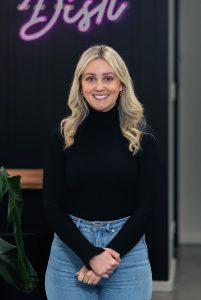


All the digital marketing & branding smarts. All in-house.
Meet our team of digital marketing specialists, branding experts, web developers. Better still, talk to us. We promise not to talk technical. Unless you like that sort of thing.
Before you pick us,
pick our brains
No more missed opportunities. No shoehorning, railroading or using a jack hammer to crack a walnut. No more wasted branding, web or marketing dollars.

David Metcalf
Director